









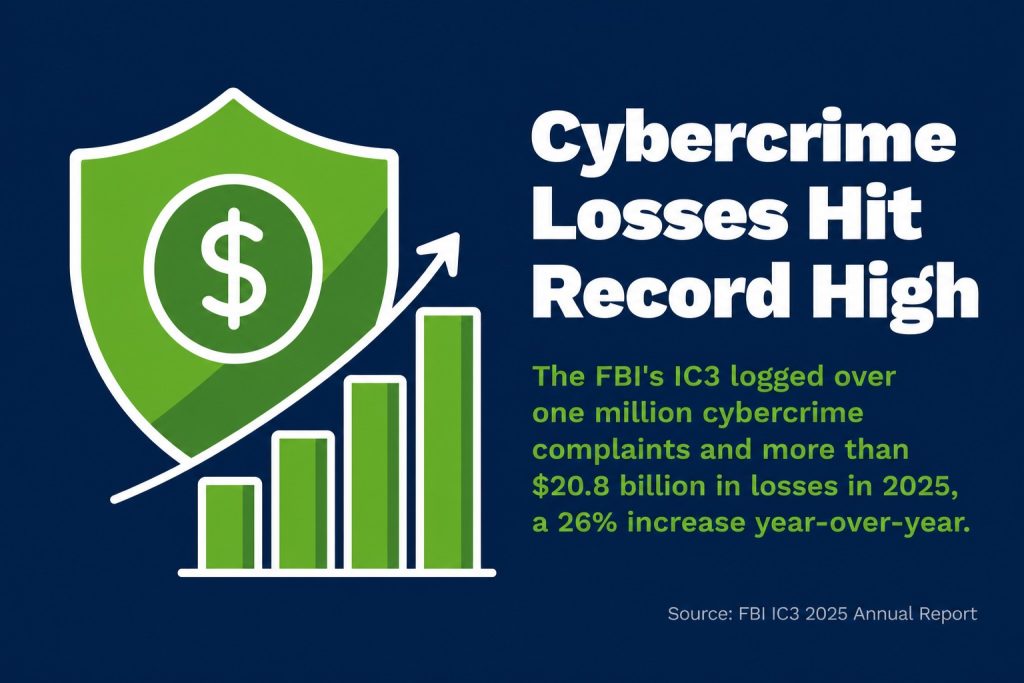
Remote work security failures cost businesses real money. The FBI’s Internet Crime Complaint Center logged over one million cybercrime complaints and more than $20.8 billion in losses in 2025, a 26% increase year-over-year, according to the IC3’s 2025 annual report. The average data breach now costs organizations $4.44 million globally, per IBM’s data breach research. Remote employees are a primary attack surface. The threat is not theoretical.
Most businesses I speak with aren’t negligent. They’re just stretched thin, and security slips through the cracks. A password not changed, a VPN not deployed, a software update skipped for three weeks. That’s all it takes. This guide cuts straight to what actually works, in plain terms, so you can act today.
1. Why Remote Work Security Is a Business-Critical Priority
Remote work security failures now trigger seven-figure losses, and the data shows the threat is accelerating, not stabilizing.
Email-origin fraud alone, covering business email compromise, phishing, and government impersonation, exceeded $4 billion in losses in 2025, according to analysis of the FBI IC3 2025 report. That’s not a rounding error. That’s the cost of attackers systematically targeting the gap between a corporate office and a home desk.
Ransomware complaints to the IC3 rose to 3,611 in 2025, per McDonald Hopkins’ analysis of the IC3 data. Each one of those complaints represents a business that got hit while someone was working remotely, likely on an insecure connection or unpatched device.
The uncomfortable truth is that most remote work setups were built for convenience, not security. If you haven’t reviewed yours recently, the practices below are your starting point.
2. Secure Your Home Network Before Anything Else
Your home Wi-Fi network is the front door to your business data, and most home routers ship with default settings that attackers know by heart.
Change your router’s default admin password immediately. Use WPA3 encryption on your Wi-Fi network if your router supports it. WPA3 is the current Wi-Fi security standard and significantly harder to crack than its predecessor WPA2. If your router only supports WPA2, make sure you’re using WPA2-AES, not the older TKIP protocol.
Create a separate guest network for personal devices, smart TVs, and anything that doesn’t need access to your work files. Keep your work devices on one network. Keep everything else on another. That separation alone limits how far an attacker can move if one device gets compromised.
- Change default router credentials to a strong, unique password the moment you set up or reset your router.
- Enable WPA3 or WPA2-AES encryption in your router’s wireless settings.
- Set up a guest Wi-Fi network for personal and IoT devices, separate from your work connection.
- Update your router firmware regularly. Most routers have an auto-update option. Turn it on.
3. Use a VPN for Every Work Connection
A virtual private network (VPN) encrypts your internet traffic and routes it through a secure server, shielding sensitive data from anyone who might be watching on the same network.
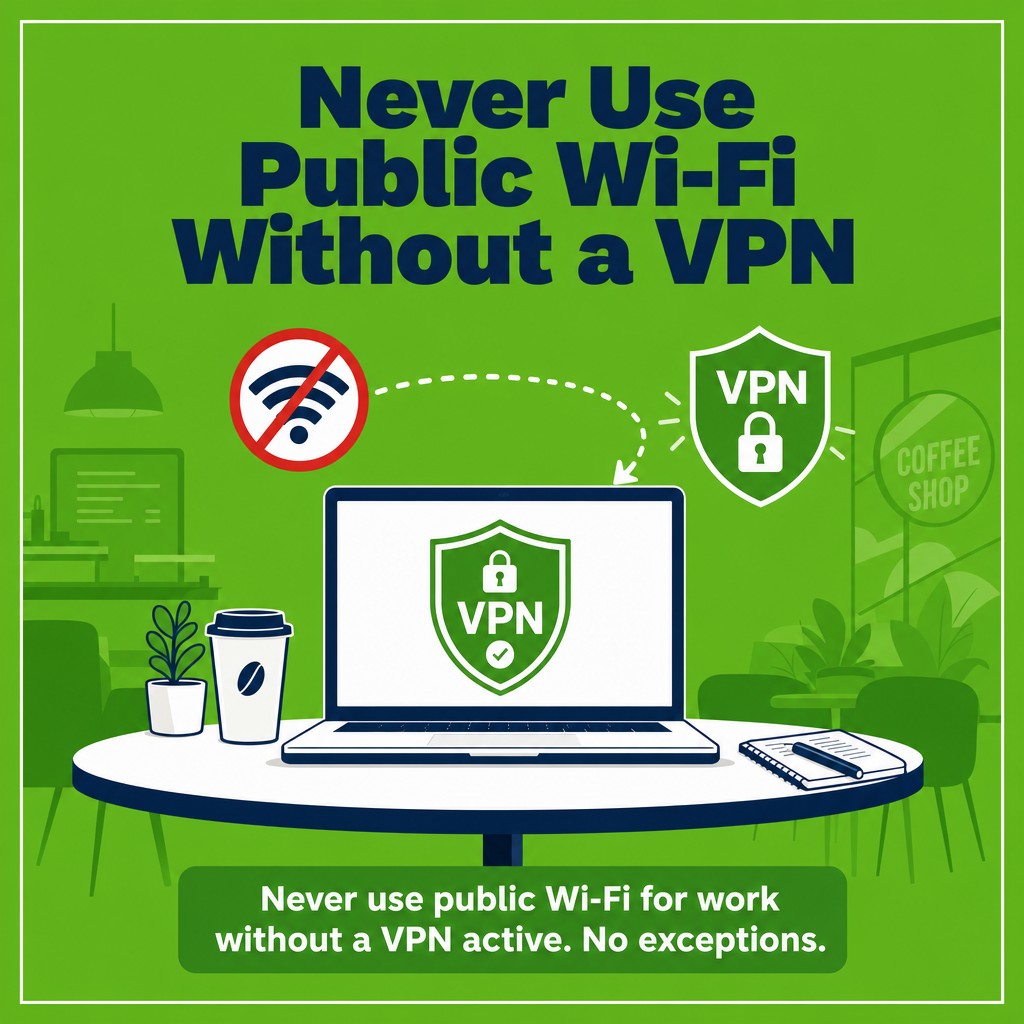
This matters most on public Wi-Fi. Coffee shops, airports, hotels. Public Wi-Fi networks are largely unencrypted, and attackers regularly run what are called “man-in-the-middle” attacks on them, intercepting traffic between your device and the internet. A VPN stops that cold.
But a VPN matters at home too. Your internet service provider can see your traffic. Your router can be compromised. Using a VPN for all work-related connections is a baseline, not a bonus.
Your business should deploy a corporate VPN that all remote employees connect through. Consumer-grade VPN apps are not a substitute. Make VPN use mandatory policy, not optional guidance. If someone is accessing company systems or handling sensitive data, the VPN should be on.
Never use public Wi-Fi for work without a VPN active. No exceptions.
4. Enable Multi-Factor Authentication on Every Account
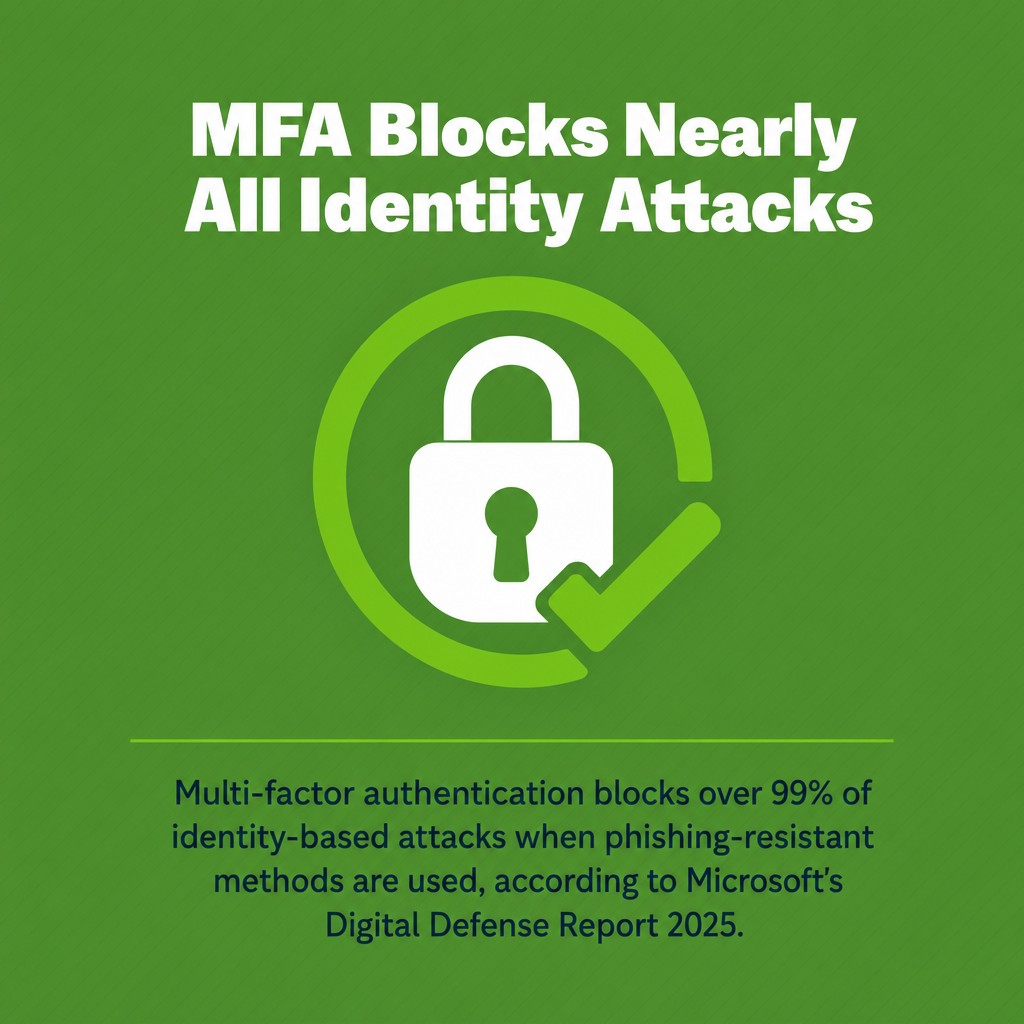
Multi-factor authentication (MFA) blocks over 99% of identity-based attacks when phishing-resistant methods are used, according to Microsoft’s Digital Defense Report 2025. That number should end any internal debate about whether MFA is worth the extra step.
ID-based attacks surged 32% in the first half of 2025 compared to the same period in 2024, per Microsoft’s security blog. Attackers are going after credentials because credentials are the easiest path in. MFA closes that path.
Not all MFA is equal. SMS-based codes are better than nothing, but they can be intercepted through SIM-swapping attacks. Authenticator apps like Microsoft Authenticator or Google Authenticator are stronger. Hardware security keys like YubiKey are the strongest option and qualify as phishing-resistant MFA.
Enable MFA on every account that touches company data: email, VPN, cloud storage, HR systems, finance platforms. Every single one.
5. Build Strong Passwords and Use a Password Manager
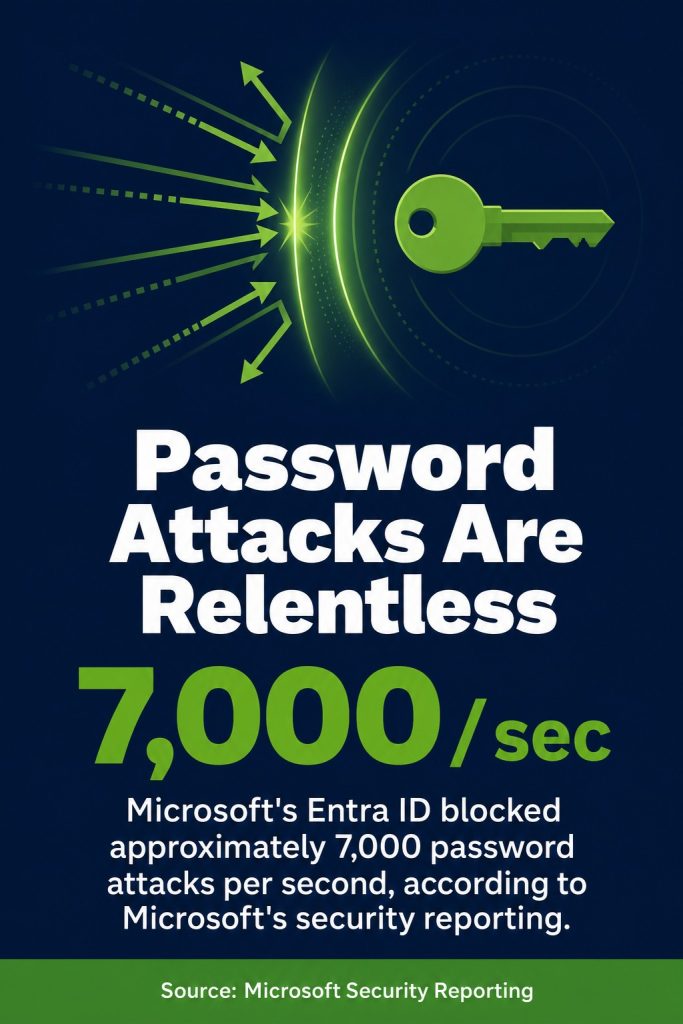
Microsoft’s Entra ID blocked approximately 7,000 password attacks per second, according to Microsoft’s security reporting. That’s the scale of credential-stuffing and brute-force activity happening right now. Weak or reused passwords don’t stand a chance against it.
A strong password is long, random, and unique to each account. At least 16 characters. A mix of uppercase, lowercase, numbers, and symbols. And critically, never reused across sites. The problem is that no human can remember fifty unique strong passwords. That’s not a personal failing. It’s just maths.
A password manager solves this. Tools like 1Password, Bitwarden, or Dashlane generate, store, and autofill strong passwords for every account. Your employees only need to remember one master password. The manager handles the rest.
Make a password manager part of your remote work security policy. Issue it as a business tool, not a personal choice.
6. Patch Software Before Attackers Find the Gap
Software vulnerability exploitation surpassed stolen credentials to become the number one initial access vector in 2025, according to the Verizon Data Breach Investigations Report. Attackers don’t need your password if your unpatched software has a door they can walk through.
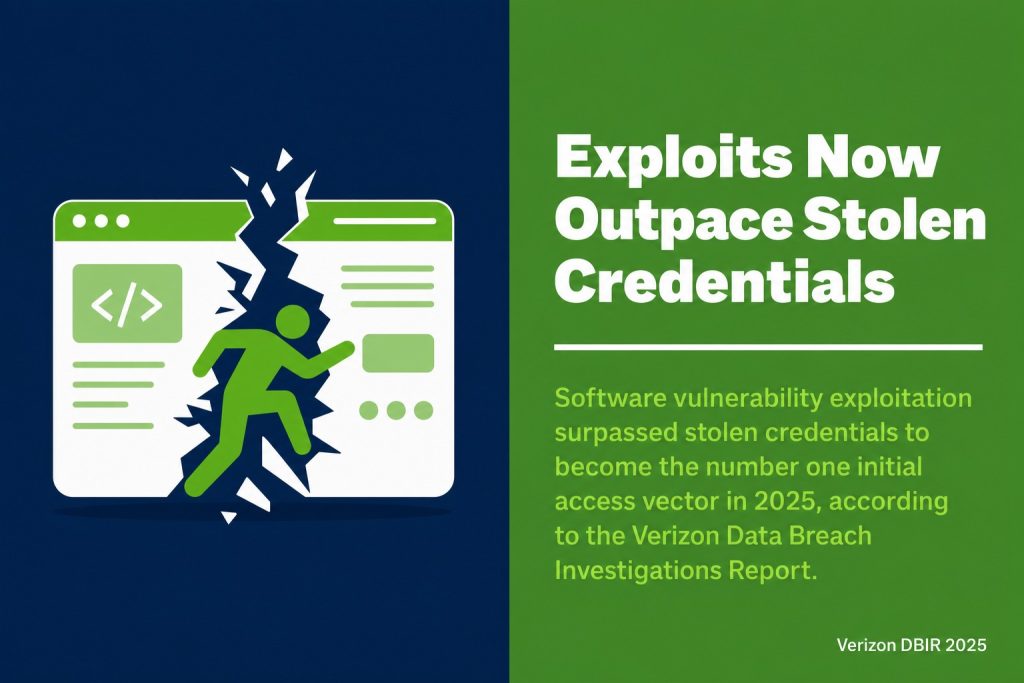
This is a shift worth taking seriously. For years, phishing and credential theft dominated breach entry points. Now, unpatched systems are the top target. The implication is direct: if your remote workers are running outdated operating systems, browsers, or applications, they are your highest-risk machines.
Enable automatic updates on all devices. For operating systems, browsers, and endpoint security software, auto-update removes the human delay. For critical business software, IT should push patches through a mobile device management (MDM) system rather than relying on employees to update manually.
Audit your remote fleet quarterly. Any device more than two patch cycles behind should be flagged and remediated before it touches company systems.
7. Deploy Antivirus and Endpoint Protection on Every Device
Antivirus software and endpoint protection platforms are your last line of defense when a user clicks something they shouldn’t have.
Basic antivirus catches known malware. Endpoint detection and response (EDR) tools go further, monitoring for unusual behavior, isolating compromised devices, and alerting IT to active threats. For most SMEs, a business-grade endpoint protection platform covers both functions.
Options worth evaluating include CrowdStrike Falcon and Microsoft Defender for Business. Both provide antivirus and EDR capabilities designed for organizations without large security teams.
Two rules apply across the board. First, every device that accesses company data must have endpoint protection installed. No exceptions for personal laptops or BYOD devices. Second, the software must be kept updated. Outdated antivirus definitions protect against yesterday’s threats, not today’s.
8. Recognize and Stop Phishing Attacks Cold
Phishing remains one of the most effective attack methods because it targets people, not systems, and people can be fooled even when systems cannot.
A phishing email impersonates a trusted sender, a bank, a colleague, Microsoft, your CEO, and tricks the recipient into clicking a malicious link or handing over credentials. Spear phishing takes this further by personalizing the message using information scraped from LinkedIn or company websites. The more targeted the attack, the harder it is to spot.
Training is the primary defense. Run phishing simulation exercises at least quarterly. Tools like KnowBe4 and Proofpoint Security Awareness Training send simulated phishing emails to your staff and measure who clicks. The goal isn’t to embarrass anyone. It’s to build the habit of pausing before clicking.
Teach your team these four checks before acting on any email:
- Verify the sender’s email address, not just the display name. Attackers spoof display names routinely.
- Hover over links before clicking to see the actual destination URL.
- Question urgency. Phishing emails almost always pressure you to act immediately.
- Confirm unusual requests by phone or a separate message, especially anything involving payments or login credentials.
Train your people. Then train them again.
9. Protect Devices Physically and Lock Screens When Away
A stolen laptop with no screen lock and unencrypted storage is a complete breach. Physical device security is not a soft concern. It is a hard data protection requirement.
Set screen locks to activate after no more than five minutes of inactivity on all work devices. Use strong PINs or biometric authentication to unlock. On Windows, Windows + L locks the screen instantly. On Mac, Control + Command + Q does the same. Make it a habit before stepping away from any device in any location.
Enable full-disk encryption on every work laptop and mobile device. BitLocker on Windows and FileVault on macOS are built-in options. If a device is stolen and encrypted, the data on it is unreadable without the decryption key.
For remote workers, enforce a clear-desk policy: sensitive documents should never be left visible in a home office when not in use. This matters most for anyone working in shared living spaces.
10. Control Data Access and Back Up Everything Critical
The least-privilege principle means every employee gets access only to the systems and data they actually need to do their job, nothing more.
This limits the blast radius when an account is compromised. If an attacker steals a junior employee’s credentials, they should reach a narrow slice of data, not the entire company file system. Review access permissions regularly and revoke anything that’s no longer needed. Former employees’ access should be removed on their last day, not eventually.
Pair access controls with a solid backup strategy. Store backups in at least two locations: one centralized cloud storage solution and one offline or air-gapped copy. Business cloud platforms like OneDrive for Business or Google Drive for Workspace provide encrypted, centralized storage that IT can manage and monitor.
Also note this: employee use of unapproved “shadow AI” tools tripled to 45% in 2026, according to the Verizon DBIR. Sensitive data pasted into unauthorized AI tools is data you’ve lost control of. Approved tools only, and make the policy explicit.
Test your backups. A backup you’ve never restored is a backup you don’t actually have.

Put These Practices to Work This Week
Remote work security doesn’t require an enterprise budget or a team of specialists. It requires consistency. The ten practices above cover every major attack surface: your network, your devices, your accounts, your people, and your data.
Start with the highest-impact items. Deploy MFA across all accounts today. It blocks the vast majority of credential attacks and takes less than an hour to roll out across a small team. Make VPN use mandatory by end of week. Run a software update sweep across all remote devices before Friday.
If you want a full picture of where your remote setup stands right now, our cyber security risk assessment walks you through the gaps systematically. No jargon, no pressure, just clarity on what to fix first.
Secure your systems. Train your people. Don’t wait for a breach to take this seriously.

